Shadowrocket Import and Connection Guide
Follow five steps, from Add Server to verifying a real request. For iPhone and iPad. First establish a connection you can verify, then adjust rules and automatic connection settings.
Follow the steps in order. All four images are official App Store screenshots to help identify screens and fields. Refer to the English labels shown on your device; the example content in the screenshots is not connection information to copy.
Add a Server or Import an Existing Subscription
Save your own connection details in the app, then select the server you want to use.
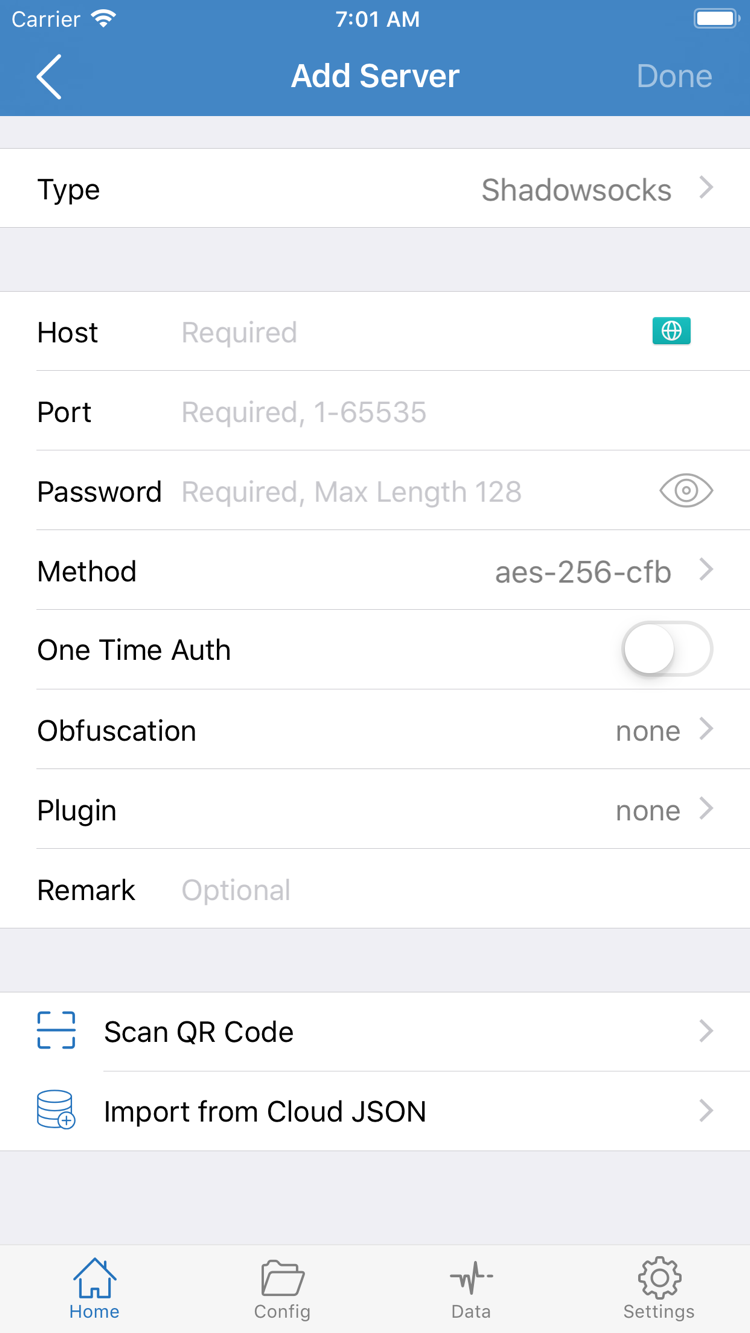
Open Shadowrocket, go to Home, and find Add Server near the SERVER section. In some views, you can also tap the add button in the top-right corner. When the form opens, check Type before entering Host. Type determines what the following fields mean; the same address and password cannot be used interchangeably across protocols. Before entering anything, identify whether you have a subscription link, details for a single server, or a server share link. Each is imported differently.
Have a Subscription Link? Select Subscribe under Type
- Copy your complete subscription link, return to Add Server, and select Subscribe under Type.
- Paste the link into the URL field for this type. If there is a remarks field, enter a name to help you identify its purpose. Do not split the subscription link into Host and Port or remove its query parameters.
- Check that the pasted content contains no extra instructions, spaces, or line breaks. Then use the save option in the top-right corner and wait for the subscription to load.
- Return to Home and check that the subscription group and its server entries appear. Select one of the entries you want to use. A group name without any server entries does not mean the import is complete.
Subscribe reads server details returned by a link; it does not provide a connection service. A link may contain personal access credentials, so do not share it in public chats, screenshots, or troubleshooting logs. If the response is a login page, an information page, or a format the app does not support, saving the link will not create selectable servers. Check the original details instead of repeatedly adding the same group.
Have Server Details? Enter Them Manually Under the Correct Type
Start in Add Server and select the Type specified in your server details. Enter the server domain or address in Host and the port in Port. Fill in Password, Method, and any other authentication fields shown for that type. The official screenshot shows one combination of fields, including Password and Method; not every Type uses the same fields. If your details include UUID, TLS, Server Name, or transport options, match each item to the corresponding field. Do not infer a match based on similar names.
When you have finished entering the details, save them and return to Home to check the new entry, then tap it to select it. If you have your own QR code, use Scan QR Code and verify the Type, address, and authentication details after scanning. Import from Cloud JSON is another way to load compatible JSON data; it is not a general-purpose field for subscription links. For clipboard and share-link formats, subscription updates, and group management, see the Subscription and Server Management Manual.
Choose Global Routing and Check the Current Config
The server determines which server handles the connection; Global Routing determines how requests are handled.
After saving the server, return to Home and open Global Routing. To get started, distinguish among three modes: Config, Proxy, and Direct. Your choice changes how requests are handled; it does not test the server or replace the authentication details you just entered. To make troubleshooting easier, note the current selection before choosing a mode for your needs. Do not switch between multiple configurations before verifying the server.
| Mode and Interface Label | How It Works | What to Check First |
|---|---|---|
| Config | Routes requests according to the rules in the current configuration. | Confirm that the intended configuration is selected and that the rules point to a valid policy or server. |
| Proxy | Sends traffic that can be proxied through the currently selected server. | Can help isolate the effect of routing rules, but does not guarantee that every request will succeed. |
| Direct | Connects directly to the destination service. | Useful for checking your local network, but not for verifying whether a proxy server works. |
Before Using Config, Check Which Configuration Is Active
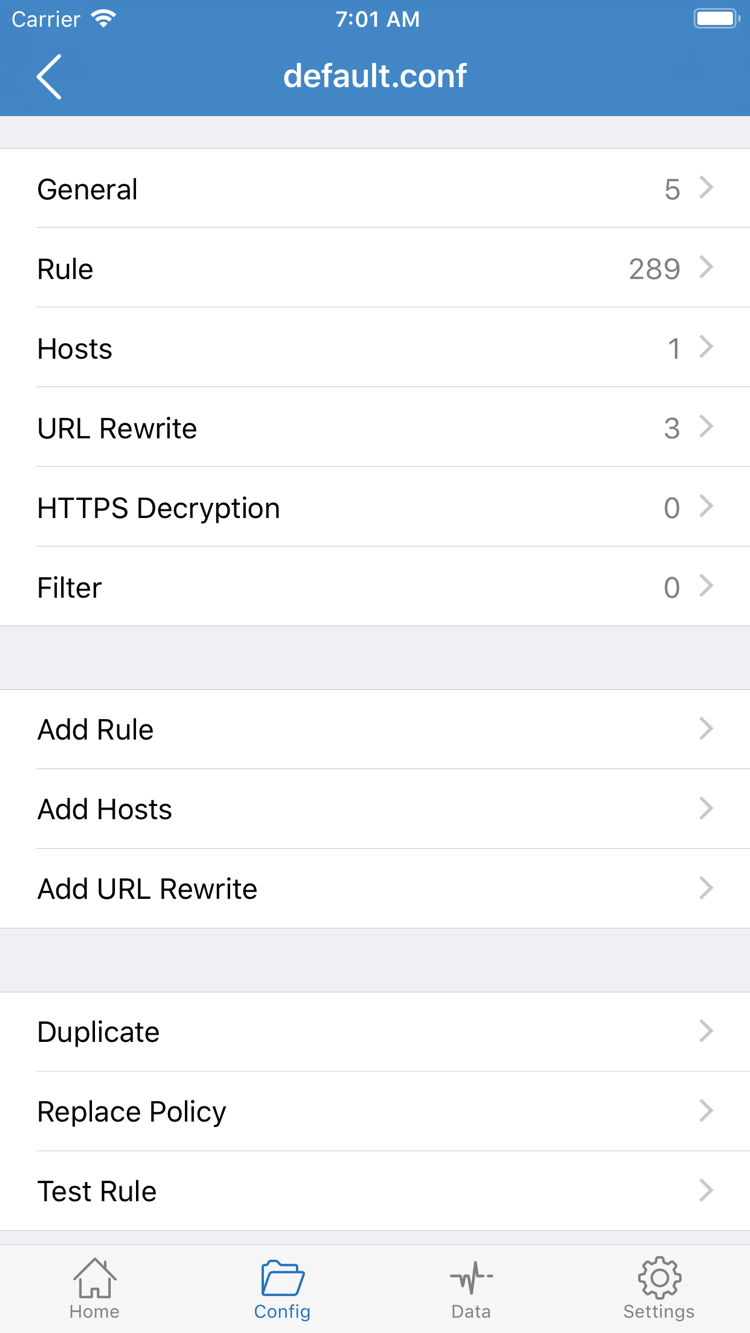
If you already have a configuration file you have verified, open Config and check which file is selected. To review its rules, open the file's editing screen and look for sections such as General, Rule, and Hosts. Use Add Rule in Rule to add a rule. The screenshot shows the configuration editor, not the Global Routing selector on Home; they serve different purposes. The former stores configuration content, while the latter determines whether that configuration is used.
You do not need to add rules before your first connection. First check whether the existing rules point to targets that are actually available. Do not mistake a policy name in a rule for a server address. The rule snippet below shows the syntax; it is not a complete configuration for every network. example.com is an example domain, not a connection address.
DOMAIN-SUFFIX,example.com,PROXY
GEOIP,CN,DIRECT
FINAL,PROXY
In this rule syntax, DOMAIN-SUFFIX matches domain suffixes, DIRECT means connect directly, PROXY sends traffic through a proxy, and FINAL is the fallback. Actual handling also depends on the full configuration and rule order, so the last line alone does not determine the path for every request. If you are not sure how the current configuration works, keep the original file and do not delete General or overwrite rules in bulk.
To distinguish a server problem from unexpected routing, note the current selection, switch to Proxy for one comparison test, then restore the original mode. For details on mode behavior, see Proxy Mode Guide. For saving, organizing, and backing up configuration files, see the Subscription Manual. This page continues with the mode you have confirmed and does not cover editing an entire ruleset.
Turn On the Connection and Complete System Authorization
Confirm the server and mode before responding to the first VPN configuration prompt.
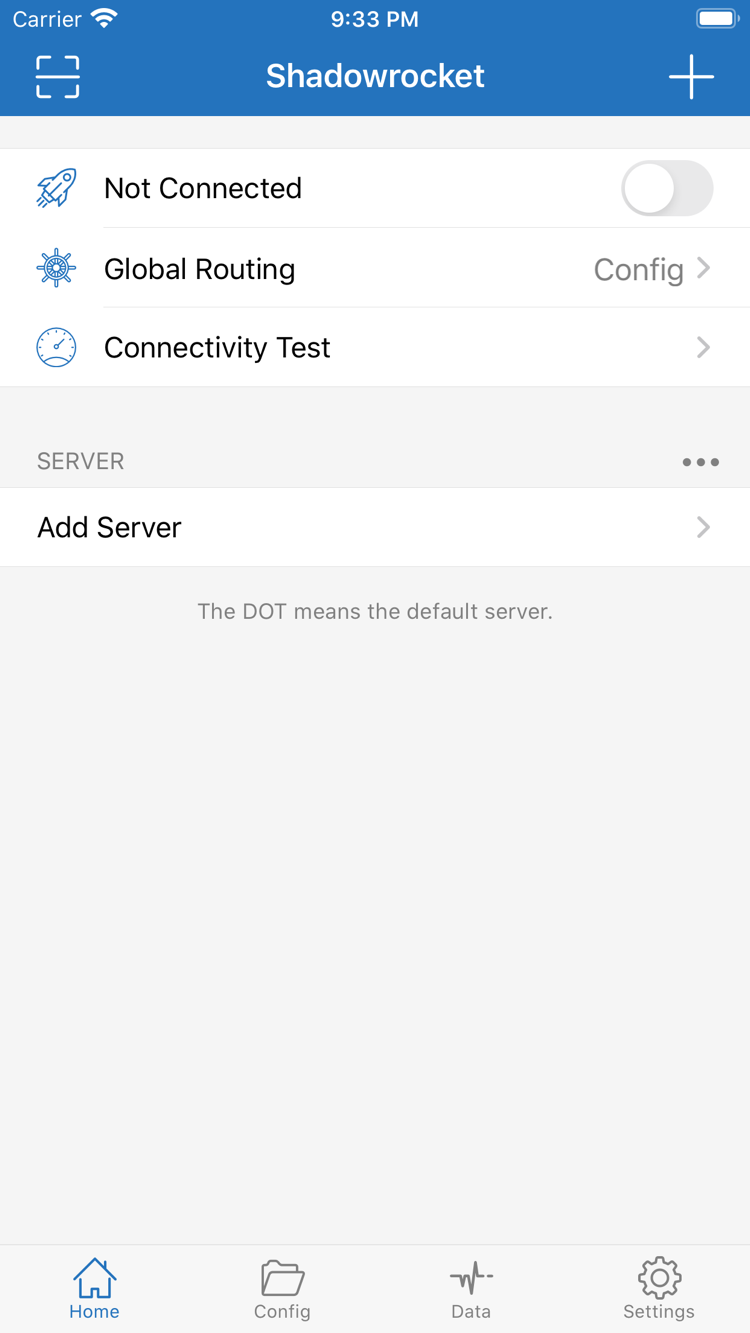
Return to Home and check these three things: the intended server is selected under SERVER, Global Routing is set to the mode you want, and the switch at the top is still off. Not Connected in the official screenshot means the app is disconnected; it does not mean the import failed. Saving a server does not connect automatically.
- After confirming your details and mode, turn on the connection switch at the top of Home.
- The first time you connect, the system may ask to add a VPN configuration. Check that the prompt refers to Shadowrocket, then confirm after reviewing the request.
- If the system asks for your device passcode or authentication, follow the prompts on your device. Do not enter your device passcode in the Password field in Add Server.
- Return to Shadowrocket and check whether the status at the top changes from Not Connected to connected, then continue to the next step.
System authorization allows the app to handle traffic through the system's network mechanisms. It does not correct server details or add usable content to a subscription. If you denied authorization, return to the app and try connecting again after reviewing the prompt. If the device is managed or restricted by the system, check its settings first; do not repeatedly tap the switch to bypass the prompt.
After a connection is established, the system VPN indicator can help confirm that the tunnel is enabled, but it does not guarantee that the target service is reachable. Server authentication failures, DNS resolution issues, or problems with the destination can still occur after the switch is turned on. Conversely, if you are using Direct, turning on the switch does not mean traffic is going through the selected proxy server. Check Global Routing to determine how traffic is handled.
During your first connection test, keep the current network and do not immediately switch from Wi-Fi to cellular. Also leave On Demand off for now. This reduces variables and makes it easier to tell whether a failure occurred during import, authorization, or connection. To stop, turn off the switch at the top of Home. Before changing key fields such as Type or Port, disconnect, save your changes, and reconnect.
Verify the Connection and Check That Requests Follow the Expected Route
Check server reachability, target service availability, and correct routing separately.
On Home, use Connectivity Test and check whether the current server returns a result. It helps assess reachability with the selected test method, but is not a complete test of a real service. Even if a test gets a response, actual requests may still be affected by authentication, DNS, transport settings, or the target service's status. Conversely, no response from one test method does not prove that all requests will fail.
Open a Specific Target First, Then Check Its Route
In a browser or the app you need, open a service you are authorized to access and expect the current configuration to handle. Do not rely on a page that has been open for a long time; cached content may remain visible after disconnecting. Start a new load or refresh, and note whether you see a domain resolution error, connection timeout, certificate warning, or error page from the service. These symptoms point to different stages and are more useful for troubleshooting than simply saying “it won’t connect.”
If you use Config, first check which rule should match the target domain. If a page that is routed directly by a rule opens, that only confirms that the direct request succeeded; it does not prove that the selected proxy server works. If the same request succeeds under Proxy but fails under Config, focus on the active configuration, rule order, and policy target. If it fails in both modes, check your server details and local network. Restore the original mode after comparing to avoid leaving temporary settings in place.
Change One Thing at a Time
For the first test, use the same server, target, and local network throughout. To compare Wi-Fi and cellular, record the original result before switching networks and testing again. If you want to try another server you already have, keep the target and mode unchanged. Changing the server, DNS, and rules at the same time makes it hard to determine why a test succeeded or failed and which change to keep.
You can finish this getting-started process when the target request works as expected, the mode matches your intent, and the same result is reproducible after reconnecting. Then consider subscription updates, group organization, or On Demand. For details on Connectivity Test methods, DNS, and specific request errors, see Frequently Asked Questions and Troubleshooting. You do not need to change every setting to complete your first connection.
Troubleshoot by Failure Stage Instead of Resetting Everything
Keep your existing details and start with the step closest to where the problem occurs.
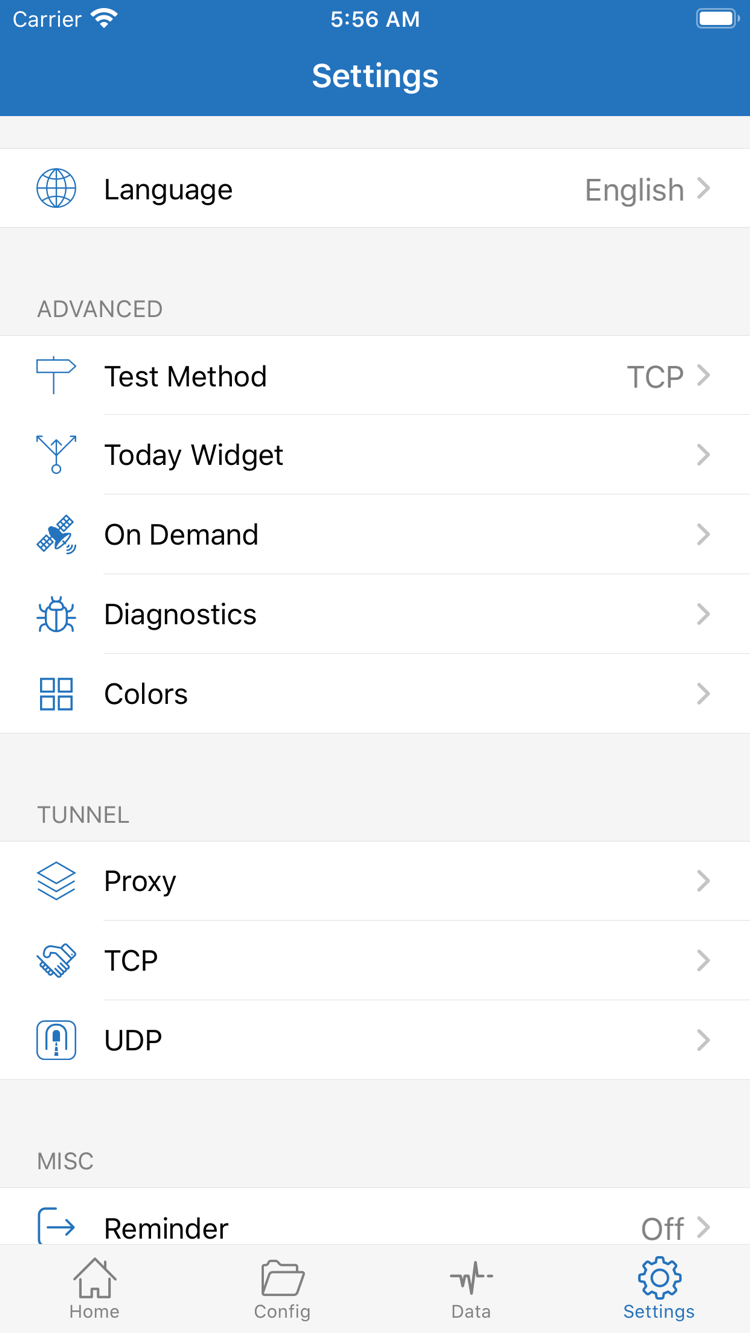
If the first four steps did not produce the expected result, stop deleting and reimporting items repeatedly. Note which step failed, the current Global Routing mode, the local network in use, and any error message. Then open Settings and look for Test Method, On Demand, and Diagnostics. These features are for testing, automatic connections, or diagnostics; they cannot make an arbitrary server usable.
No Servers Appear After Saving a Subscribe Entry
First confirm that your local network can access the internet normally. Then check that the subscription link is complete, has not expired, and returns data in a compatible subscription format. Some links include query parameters; omitting the end of a link when copying it can change the response. If the same subscription group already exists, update it there instead of importing it again and cluttering the list. Check the subscription content against your existing service details. For update options and managing multiple subscriptions, see the Subscription Manual.
Connection Won't Turn On or Disconnects Immediately
Return to step three and confirm that system VPN authorization is complete. Then check that the intended server is selected under SERVER. If the switch turns on briefly and then turns off, check the specific message from the app or system, and verify Type, Host, Port, and authentication fields. Do not assume the protocol is correct just because the password looks right. If your details require TLS or specific transport fields, entering only the address and port is not enough.
Test Gets a Response, but Pages Still Won't Load
First identify the test method. Test Method in Settings affects what the result means; it is not a guarantee that services will be reachable. Then follow step four to compare Config and Proxy using the same target, and check whether the current rule sends the request to a valid target. If only domain-based requests fail, investigate DNS using the specific error. Do not change multiple DNS addresses at once without recording the original settings, and do not turn on HTTPS Decryption just because a certificate warning appears.
Status Is Unexpected After Switching Networks or Returning to the App
Turn off the connection manually, then reconnect on the current network and test again to check basic stability. If On Demand is configured, check whether its conditions match the current network. On Demand triggers connections based on conditions; it cannot fix an expired subscription or incorrect authentication. If the first connection has not succeeded yet, keep using manual connection until basic verification is complete, then configure On Demand separately.
Keep Only Essential Details for Further Troubleshooting
Use the Diagnostics option available in the current interface to review diagnostic information, and note what happens around the time of the failure and the target request. Diagnostics may contain target domains, server addresses, or personal details. Before sharing, hide subscription links, passwords, and authentication information. Keep a copy of the configuration from before making changes, change one thing at a time, and test the same target again. If a change does not help, restore the original value instead of accumulating temporary changes.
For everyday use after getting started, check that your subscription is valid, the correct server is selected under SERVER, and Global Routing matches your needs. Turn on the connection when needed. For more detailed troubleshooting, see Frequently Asked Questions. To manage multiple subscriptions and servers or create backups, see the Subscription Management Manual. You do not need to configure every advanced option before your first connection.