App Store · One-Time Purchase

Shadowrocket
User Guide and Authenticity Check

The official guide for iPhone / iPad: verify the genuine App Store app, learn about the one-time purchase, importing an existing subscription, and rule-based routing.

Where to find settings and how they work together

Shadowrocket features

Understand the difference between servers, configuration files, and routing modes before changing individual settings. The examples below explain syntax; they are not complete, ready-to-use configurations.

Rule-Based Routing and Global Routing

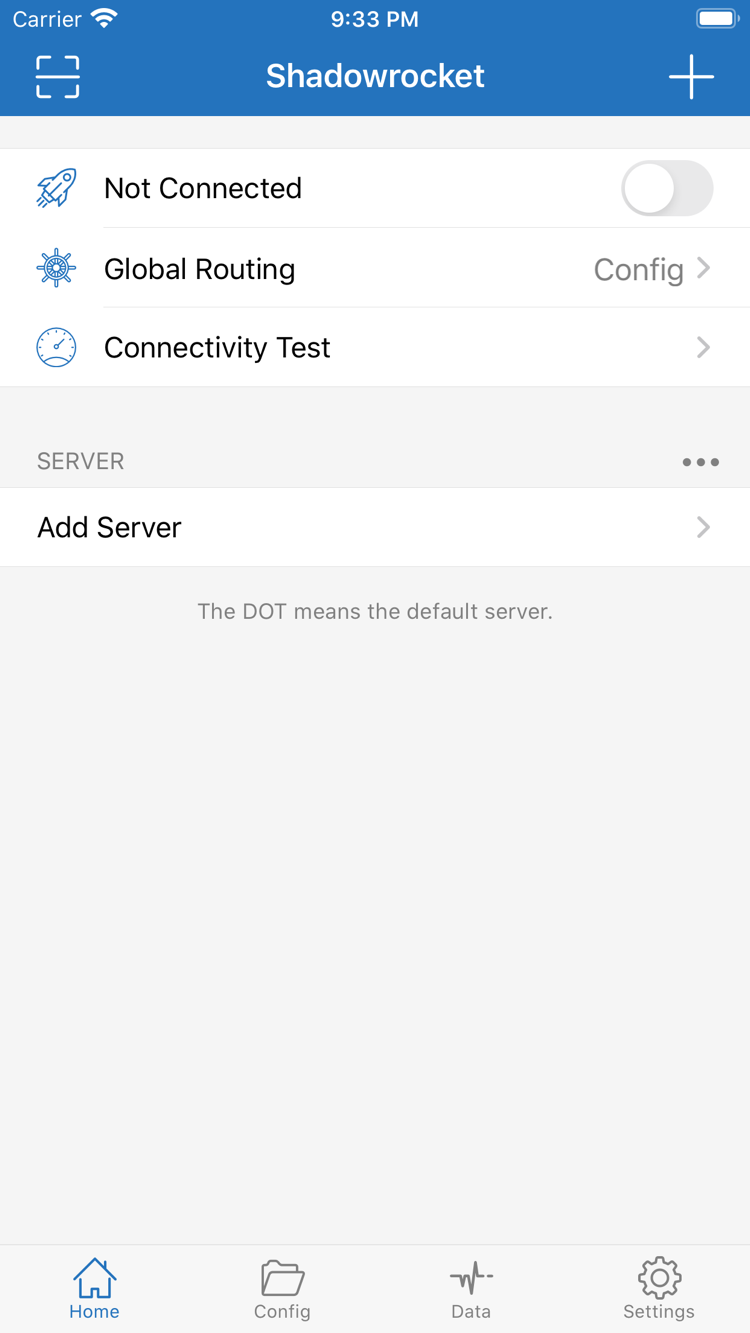
Rules determine whether a request goes through the selected server, connects directly, or is rejected. In Home > Global Routing, select Config to apply the rules in the active configuration. Proxy and Direct apply proxying or direct connections globally. Check which files are enabled in Config, then review the matching conditions, order, and final policy in Rule. Keywords such as DOMAIN-SUFFIX and GEOIP have different meanings. Keep a copy before making changes, and use specific request logs to see which rule matched; the connection toggle alone does not confirm that a rule is working.

DOMAIN-SUFFIX,example.com,PROXY
GEOIP,CN,DIRECT
FINAL,PROXY

Global Routing
Config / Proxy / Direct

When reviewing settings, think of the app in three layers: server details describe how to connect, Config describes how requests are handled, and Global Routing selects the handling mode in use. Importing a subscription usually covers only the first layer. If behavior changes after switching configuration files, check the other two layers instead of importing the same information again. Learn about routing modes →

Getting Shadowrocket on iPhone and iPad

Shadowrocket is available only on Apple platforms, and the App Store is the sole place to get it. Check your purchasing account first, then confirm that your device is compatible.

iPhone

Find the product page on the App Store and complete your purchase. When you first open the app, import your existing subscription or server details. When starting a connection, iOS displays a VPN configuration permission prompt; read it before confirming.

Check the App Store listing for system requirements. A connection icon only indicates that the system has enabled the relevant configuration. Test an actual request and review its logs to confirm that the selected server and routing mode behave as expected.

iPhone guide →

iPad

Check your purchases with the Apple ID used for the original purchase, then get the app on your iPad. Whether the purchase is universal across iPhone and iPad depends on the App Store listing. Purchase history and in-app configuration are separate; check each one independently.

On a wider screen, navigation and layout may differ. Look for interface labels such as Home, Config, and Settings. Check the App Store listing for system requirements, and test the connection on your device after importing your details.

iPad guide →

Shadowrocket is also available on the same App Store for Mac and Apple TV; check the store listing for compatibility.

Do not confuse purchasing the app with restoring its configuration. The App Store handles purchases and redownloading the app; subscriptions, selected servers, and custom rules must be checked separately. If another device prompts you to pay, first check the account currently used for the App Store and its purchase history. There is no need to repeatedly attempt a purchase.

See how to get the app →

Quick-start steps for Shadowrocket

These steps assume you already have your own subscription or server details. First verify a manual connection that you can repeat; then configure automatic updates and On Demand.

  1. 01 / IMPORT

    Import with Add Server / Subscribe

    In Home, open Add Server and choose a Type that matches your existing details. For an existing subscription, choose Subscribe. To enter server details manually, check the address, port, authentication, and transport parameters one by one. After importing, confirm the group and selected entry so you do not mistake similarly named servers for the same one.

  2. 02 / ROUTING

    Choose Global Routing

    To handle requests according to rules, select Config and confirm which file is active in Config. Proxy applies proxying globally; Direct connects directly. You can compare modes during troubleshooting, but note the original selection and restore the mode you intend to use after testing.

  3. 03 / VERIFY

    Connect and test

    Select an existing server and start the connection, then read the system permission prompt. Run Connectivity Test first, then check actual requests and rule matches. If it fails, narrow down the cause in this order: local network, server details, routing rules, and DNS. Change only one condition at a time.

Read the full guide →

What to check before and after connecting

Before connecting, check that your details are complete and the right options are selected. After connecting, check whether actual requests are handled as expected. A populated server list does not prove that authentication details are valid, and a test result does not prove that every destination uses the same rule. Describe the issue by specifying the destination, network, and mode that fail; this is more useful than simply saying “it won’t connect.”

If you already have a working configuration, keep it and make a separate copy for testing. Do not replace a subscription, change DNS, and adjust several transport parameters all at once; even if the connection works afterward, you will not know which change fixed it. For help managing groups, updating subscriptions, or backing up entries, read the subscription and server management guide.

App Store facts to verify

Authenticity, one-time purchase, and restoring purchases

Shadowrocket is a closed-source commercial app. To verify where to get it, check the App Store listing. To troubleshoot connection issues, check your own configuration. Handle these separately.

  • Developer Shadow Launch Technology Limited
  • App ID 932747118
  • One-time purchase

Check the developer, official app icon, and App ID

Search for Shadowrocket on the App Store and open its product page rather than relying on the name in search results. Confirm that the developer is Shadow Launch Technology Limited, that the icon matches the official icon in this site’s header, and that the product URL contains App ID 932747118. Similar app names do not mean they are the same product, so check all three details together. The “Get Shadowrocket on the App Store” link on this site opens the authenticity check page first, so you can verify these details before opening the store.

When viewing the product page, also review compatibility, price, and purchase information. Screenshots can help identify the interface, but they do not replace checking the developer and App ID. A button shown in a tutorial is not evidence of what the current store page displays. Always refer to the App Store listing for system requirements, universal purchase availability, and compatible devices.

Store availability and account region

Search results and displayed prices depend on the current App Store storefront. If you cannot find the expected product, open its product link from the authenticity check page, then review the store message, account region, and device compatibility. The page being temporarily unavailable does not mean your existing subscription is faulty, and importing servers again will not change App Store results. For account region or payment details, check the conditions shown by the App Store.

Before purchasing, confirm which account is currently used for the store, especially if you have switched purchasing accounts on the device. Being signed in to an account does not prove that past purchases belong to it; check the actual purchase history. Before changing devices, note the purchase associated with the original account and keep your configuration details separately.

What a one-time purchase covers

The US price is a one-time purchase of $2.99; actual prices vary by App Store storefront and are shown in local currency. Payment gives you the right to use the client app, not server connection details. App purchase ≠ service plan. This site does not provide servers or subscriptions. This manual only explains how to import and manage information you already have.

So an empty list after purchase does not necessarily mean the installation failed. Follow the guide to import your own details rather than purchasing the app again. An expired subscription, failed server authentication, and an app purchase record are separate issues. To update connection details, check your own subscription status and its response. To reinstall the app, check your App Store purchase history.

Using the app on two devices and restoring purchases

If you use the same Apple ID on iPhone and iPad, check your purchases for Shadowrocket and use the button shown in the store to download it again. Check the App Store listing to see whether the purchase is universal and which other devices it covers. If the button asks you to pay instead of offering a redownload, check the account and purchase history; paying again will not restore your configuration.

After redownloading the app, check your existing subscription, selected server, and Config file. Even if you use iCloud sync, check which items the app actually syncs, the sync status, and the results on your device. Restoring a purchase resolves access to the app; restoring configuration resolves your setup. Confirm both before testing the connection with your usual routing mode.

Manage app updates and subscription updates separately

Update the app through the App Store; refresh existing server details from subscriptions within Shadowrocket. An app update may change features or the interface, while a subscription update may change entry names, counts, or connection fields. Before updating, note the selected server and configuration. Afterward, check that your previous selection is still available to avoid misdiagnosing changes to the entries.

If behavior changes after an update, first identify which layer changed: the app interface, subscription entries, or Config rules. Note the steps you took, then compare each item separately; you do not need to redo every setting at once. This manual keeps interface labels in English so you can find the relevant screens by looking for Home, Subscribe, Config, and Settings.
Three common questions before getting started

Imported, but still can’t connect? Check the selected entry first, then distinguish a failed server test from a failed request. Next, review Global Routing and request logs. Troubleshoot connection issues →

Different results after switching Config? Compare the active configuration’s rule order, matching policies, and DNS options. Keep the original file for reference; toggling the connection off and on is not enough. Understand routing modes →

Can’t find an entry after a subscription update? Check whether the update completed, the group changed, and the entry is still in the returned content. Review what changed before importing again. Learn about updating and organizing subscriptions →

Settings and troubleshooting notes

Continue with guides to protocols, DNS, and speed issues. Keep your current configuration and verify each item in the order described.

View all articles →
Download Shadowrocket